



















Agentic AI13 minute read
Shopify Canvas vs. How Themes Are Built: A Week of Testing
On October 1, 2026, Shopify announced Canvas: redesign your store by telling Sidekick what you want, and watch it happen on the real theme in seconds. The obvious question is not whether that is impressive. It is how it compares with the way themes actually get built today, which for most Shopify stores means a developer, an AI coding assistant, a Git repository, and a surprising amount of handwork around all three.
So we gave both the same week and the same jobs: a new product card, a slider, a button change, a design that had to land on every page. One of us did them in Canvas. One of us did them the way we have built themes for years. Then we wrote down what each one handed back, with screenshots from the test store. It is written for two readers at once: the business owner wondering whether to open Canvas tonight, and the developer who will be asked about it tomorrow. Where the two of you will read the same fact differently, we say so.
Last verified: October 6, 2026, in Canvas early access on Ascent, one of Shopify’s Horizon-family themes. Where a finding comes from our own testing rather than Shopify’s documentation, we say so. Canvas is changing quickly and we will keep this page current. For what Canvas is and who can get it, start with Shopify Canvas, explained; this post picks up where that one stops.
What Each One Is, in a Paragraph
Shopify Canvas
A new design surface inside the Shopify admin. Every template of your store sits on one board. You select a block, a section or a page and either change its settings or tell Sidekick what you want; Sidekick edits the theme’s real code and the result lands on the board in seconds. It autosaves, keeps a version history, and publishes with one button (Update, once the theme is live). It opens Shopify-developed themes such as Horizon and Dawn, and custom themes, but not Theme Store purchases, and it is included in any plan that has theme customisation.
Theme development today
The way a theme change actually happens on most stores with a developer. The design arrives as a Figma file. The developer opens it beside the code editor and writes the Liquid, CSS and JavaScript, these days with an AI assistant such as Cursor or Claude doing much of the typing (a copilot, in the terms of our piece on copilots, agents and Agentic Delivery). The change goes onto a branch and is pushed; a GitHub Action or the Shopify CLI deploys it to a preview theme. Then the handwork starts. Someone digs the preview link out of the deploy log. Someone compares the preview with the Figma file, screen by screen, by eye. Someone exports the images and uploads them, and pastes the copy in. Someone runs theme check, fixes what it finds, and deploys again. Then QA, then a review, then publish. Every one of those steps is a person, and every fix repeats most of them. What you get for it is a theme you own: every file in Git, every change on record.

Side by Side, at a Glance
| Shopify Canvas | Theme development today | |
|---|---|---|
| Built for | A business user with no developer, who will run theme work themselves | A team with a developer or agency, treating the storefront as a product |
| Where the work lives | Inside the Shopify admin, on the theme itself | In a code editor and a Git repository; a preview theme on the store |
| Who writes the code | Sidekick, from your description | A developer, with an AI assistant such as Cursor or Claude |
| Can you see the code? | No. You see the result. After a Canvas edit the theme files cannot be downloaded (Shopify) | Yes. Every file, every line, and the diff of what changed |
| Duplicate the theme | Not once it is a Canvas theme, in our testing. You can duplicate a classic theme into Canvas, once | As many times as you like |
| Share before publishing | Changes are visible inside Canvas. To show a colleague, you publish (our testing) | A preview link, like any unpublished theme, once someone has dug it out of the deploy log |
| Same section on several pages | Creates a separate copy per page unless you ask for one shared section | Shared by default, because that is how a developer builds it |
| Who checks the work | You do, by looking. Shopify checks at Publish or Update and lists errors in a dialog, with a Fix with Sidekick button | The developer, by hand: theme check, then the preview against the Figma file, screen by screen |
| Getting the design in | Describe it. You can attach an image to the chat; the image files you add yourself | Open Figma beside the editor, read it, type it; export the images and upload them by hand |
| History | Version history to review and restore. No search, and no published limit on how many versions, or for how long | Git: every change, who, when, why, searchable, and rollback is a command |
| Speed | Seconds to a few minutes per change | Hours to days per change, most of it the handwork around the code |
| Cost | Included in a plan with theme customisation | A developer’s time, in-house or an agency’s |
Twelve rows, and they split cleanly. Canvas wins on speed and on how the work feels; the developer workflow wins on everything that happens after the change: who owns it, who can see it, who checked it, and what the record says. The rest of this post is the evidence behind each row, starting with the three places Canvas simply beats the way we have always worked.
Three Things Canvas Does Better Than a Developer’s Workflow
A comparison written by an agency that builds themes has an obvious bias, so here are the findings that run against it.
1. It knows exactly which block you mean
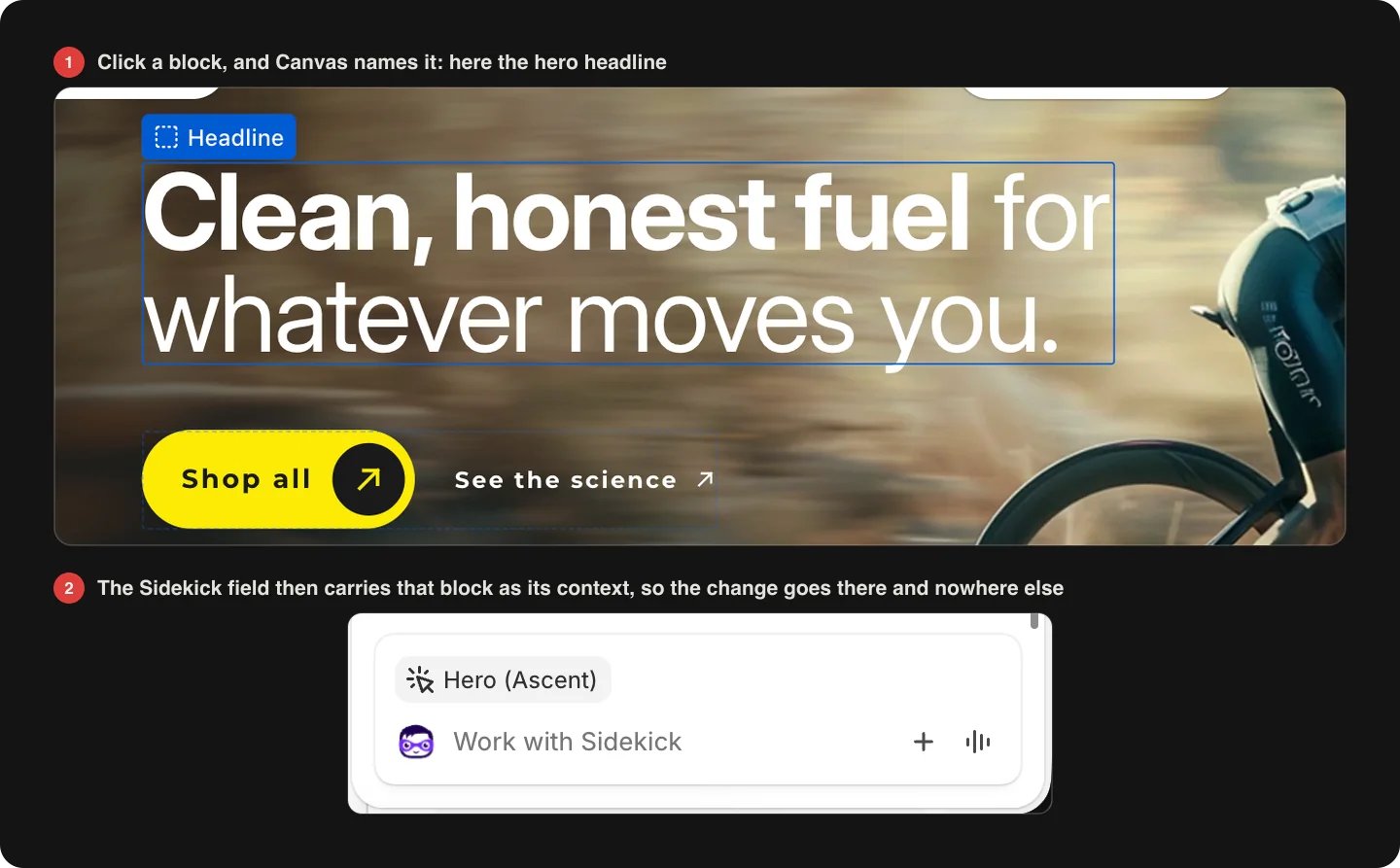
Canvas has a context selector. You click a block, a section or a page before you type, and Sidekick works on that and only that. In practice, a change to the product gallery does not wander into the collection grid. Scoped context is also the main reason Canvas is quick: Sidekick is reading one section, not a whole theme. A developer with an AI assistant has to find the right file first, and a coding assistant working from a brief has to work out the scope for itself, which costs time and sometimes gets it wrong.
2. It is fast, and the preview is just there
Because the context is small and there is no validation pass, no design file to open and no assets to place, a Canvas change lands in seconds to a few minutes, on the board, in front of you. Compare that with push, wait for CI, open the log, find the preview link, open it, refresh. For a merchandiser trying three headline treatments before a launch, Canvas’s speed is the feature, and no amount of developer tooling has ever matched it.
3. It reuses the theme’s own parts
We asked for a slider. Canvas did not write a new carousel. It took the theme’s existing slideshow component and configured it. That is exactly right, and it matters more than it sounds: a theme that grows by reusing its own blocks stays coherent, loads nothing new, and keeps working when Shopify changes the platform underneath. A good developer does the same; a rushed one, or an AI assistant with no view of the whole theme, writes a new one. Shopify’s design director has said the hard part of Canvas was teaching Sidekick to make good design decisions rather than to write code, and this is what that looks like. The one catch is that you cannot open the files to confirm it did, which brings us to the differences.
Where Canvas Falls Short of a Developer’s Workflow
Our notes from the week ran to a dozen points. They collapse into six differences, and the first one is the one everything else hangs off.
1. Who holds the code
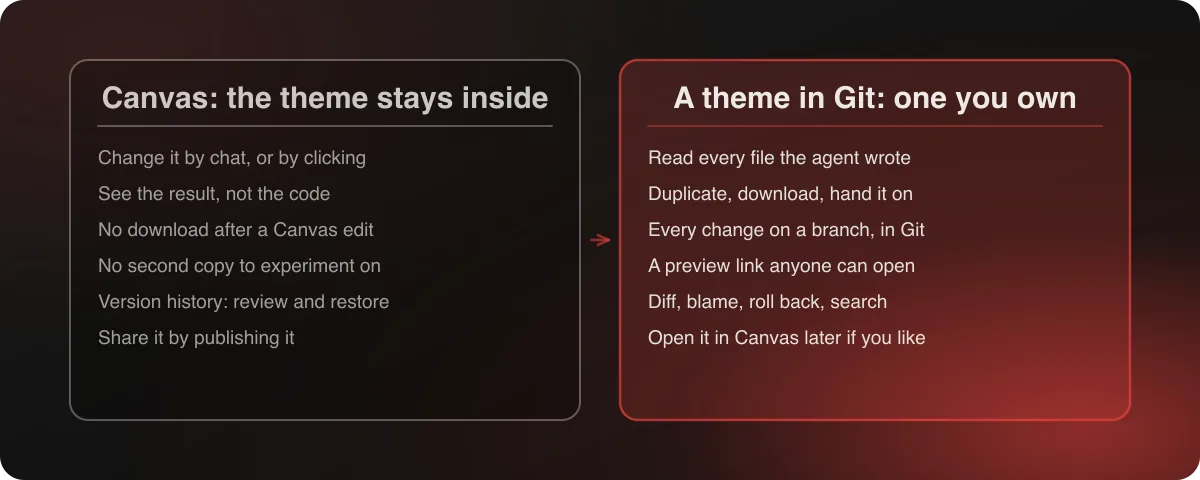
With a developer, you get the files. You can open a change and read what was added to achieve the feature, keep a copy, download it, hand it to another agency, or decide the approach was wrong and do it differently. With Canvas you get the result. The files Sidekick writes are not shown to you, and Shopify’s documentation is plain that you cannot download the theme files for a theme edited in Canvas. You rely on Shopify’s AI having done it well, and mostly it has. But you cannot check, and neither can anyone you hire later.
Business user: this may be a trade you are happy to make. You were never going to read the Liquid. Developer: this is the whole conversation. A theme you cannot export cannot be code-reviewed, cannot sit under version control, cannot be diffed against last month, and cannot be moved.
2. Working on a store that is already live
This is the finding we would most like Shopify to hear. You can duplicate a classic theme into Canvas once, and that copy is a safe place to experiment. But in our testing, once a theme is a Canvas theme it cannot be duplicated again. So the moment your Canvas theme goes live, the only place to keep working on it is the live theme itself. Canvas autosaves your changes there. Customers do not see them until you press Update, and you can see them on the board, but you cannot hand a colleague a preview link to react to. To show anyone outside Canvas, you publish.
A developer’s theme is a regular theme. Duplicate it for the risky idea, keep a staging copy, send the preview link to whoever has to sign off, and publish when they have. None of that is clever. It is what a theme in the library has always been able to do, and a Canvas theme currently cannot.
Business user: if you are the only person who needs to see a change before it ships, this costs you nothing. Developer: if a marketing lead, a brand designer and a founder all want to see it first, this is the gap that will bite.
3. One change, every page
Here is the test that showed it. We gave Canvas a design for a new product card. It applied it to the collection page, and when we asked for the same card across the site it did that too. Then we changed the card at block level, the button color in the screenshots below and a heading preset in another run, and each change stayed on the one page. Canvas had created a separate section for each page rather than one shared section, so the pages had quietly stopped being the same thing. You can get the behavior you want, but you have to ask for it in so many words: “manage this as one section; if I change it in one place, change it everywhere.” A developer would not have built it any other way: one section, included wherever the card appears, so a heading change lands everywhere without a second request.
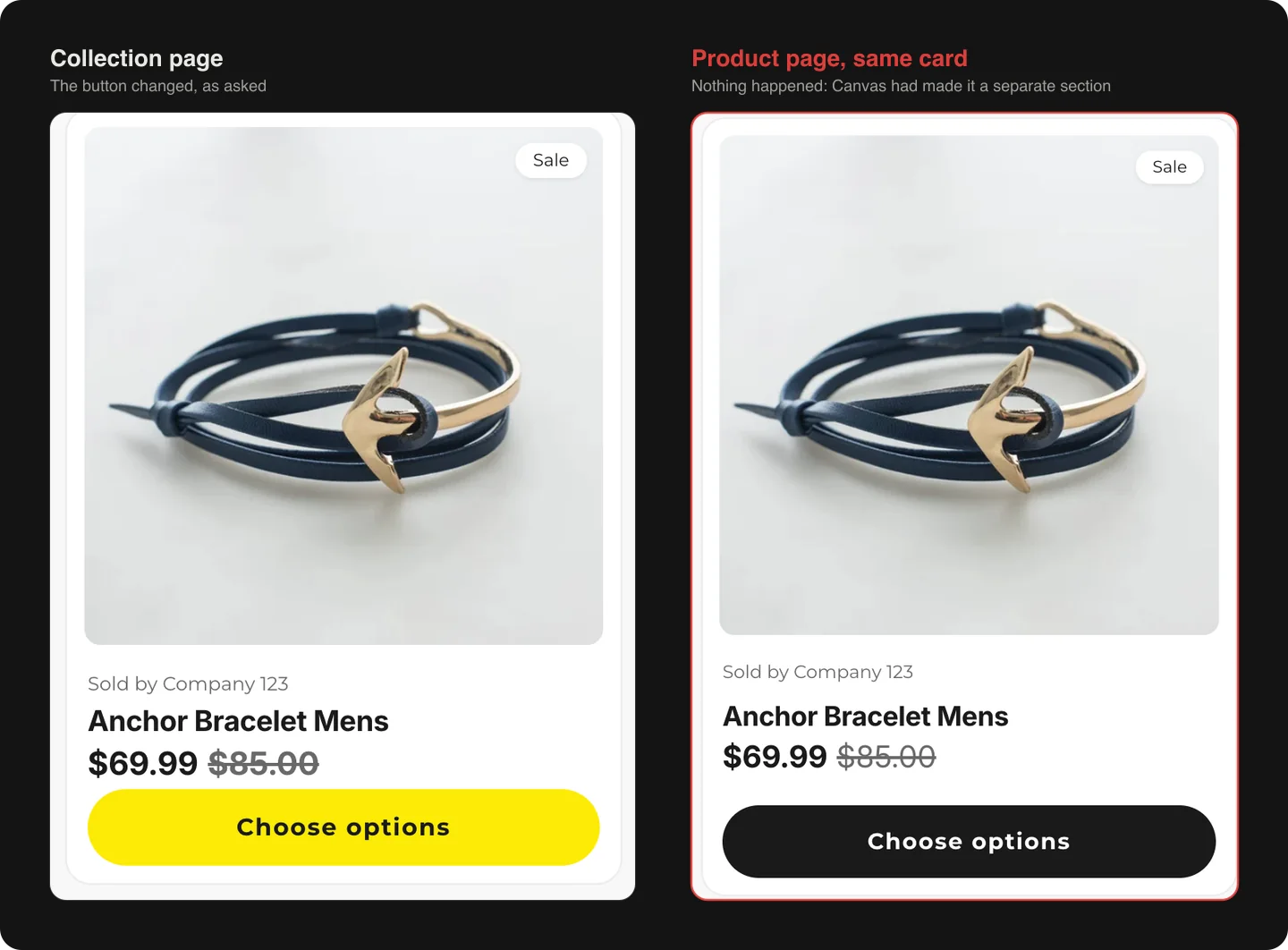
Business user: a habit, not a dealbreaker. When a design is meant to be one component, say so in the first message. Developer: Canvas optimises for the local change. Consistency across a store is a property you have to ask it to maintain, and nothing warns you when it has been lost.
4. Who checks the work, and when
Two kinds of checking matter on a theme: is the code valid, and does it look right. On the first, Shopify’s announcement says Sidekick validates its code as it works. What we saw was changes that landed on the board without complaint and then produced errors when we went to update; in the run pictured below, a border radius in the product template set past the theme’s limit of 50. Shopify’s help center describes exactly this path: if the theme cannot be published, a dialog lists the errors and a Fix with Sidekick button sends them back. It works, and Sidekick usually fixes them in one go. But the check sits at the end of the loop, and you are the one who finds out.
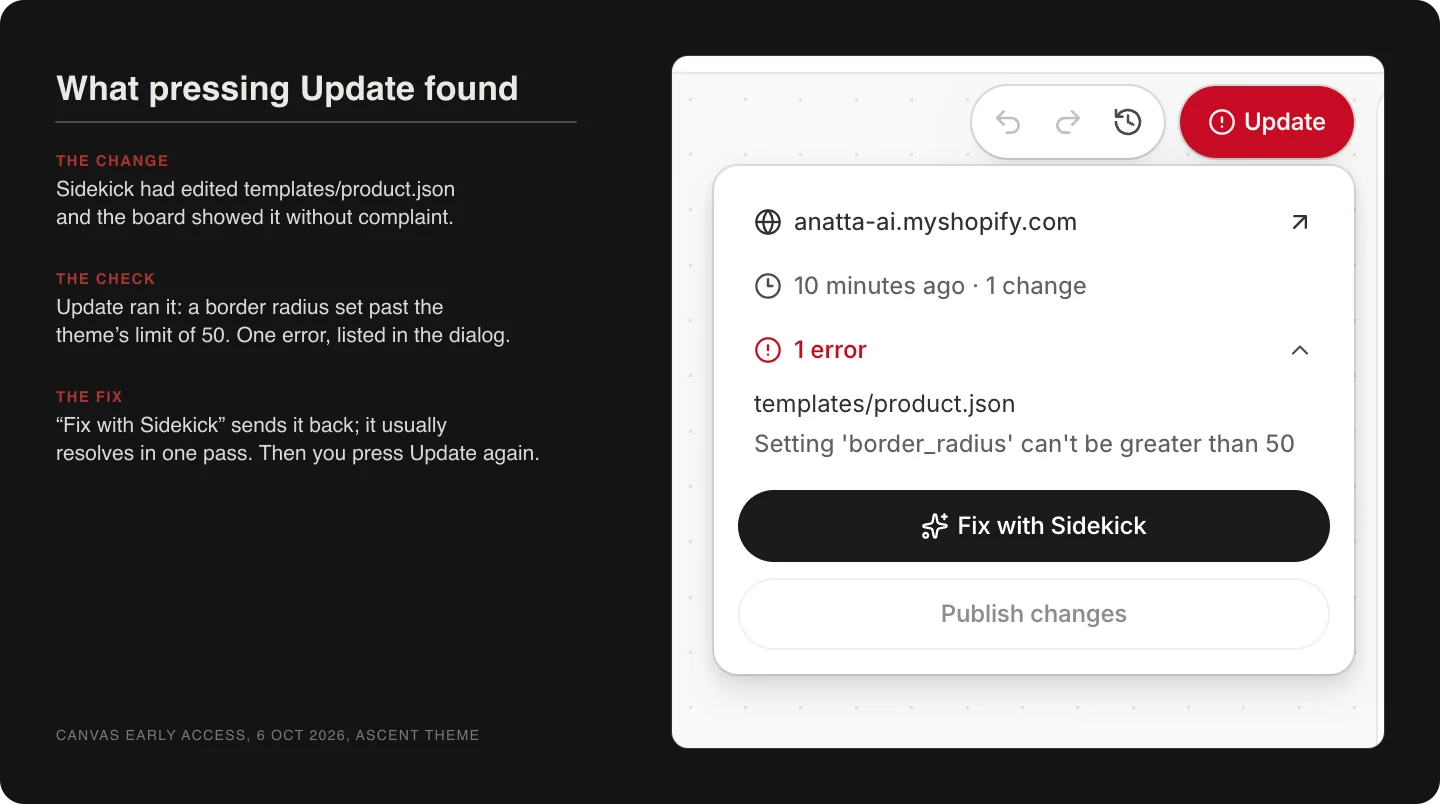
On the second, Sidekick has the context of the page but not the picture of it. If something looks wrong and you type “that doesn’t look right,” it will try, but it cannot see what you see and often cannot fix it. Paste a screenshot into the chat and the fix is much better; make that your default habit.
Now be fair to Canvas, because the developer workflow does not come out of this clean either. Its check is a person. The developer runs theme check and reads the output. The developer opens the preview next to Figma and compares them by eye. QA repeats the money paths, by hand, for every fix. It is more thorough than Canvas and it finds more, but it finds it slowly, and it costs the same hours the third time as the first.
Business user: in Canvas, expect the errors dialog at Update to be part of the routine, and keep a screenshot tool open. Developer: Canvas checks at publish time, by the publisher. Your workflow checks at build time, by you, and that “by you” is the expensive part.
5. Remembering what changed
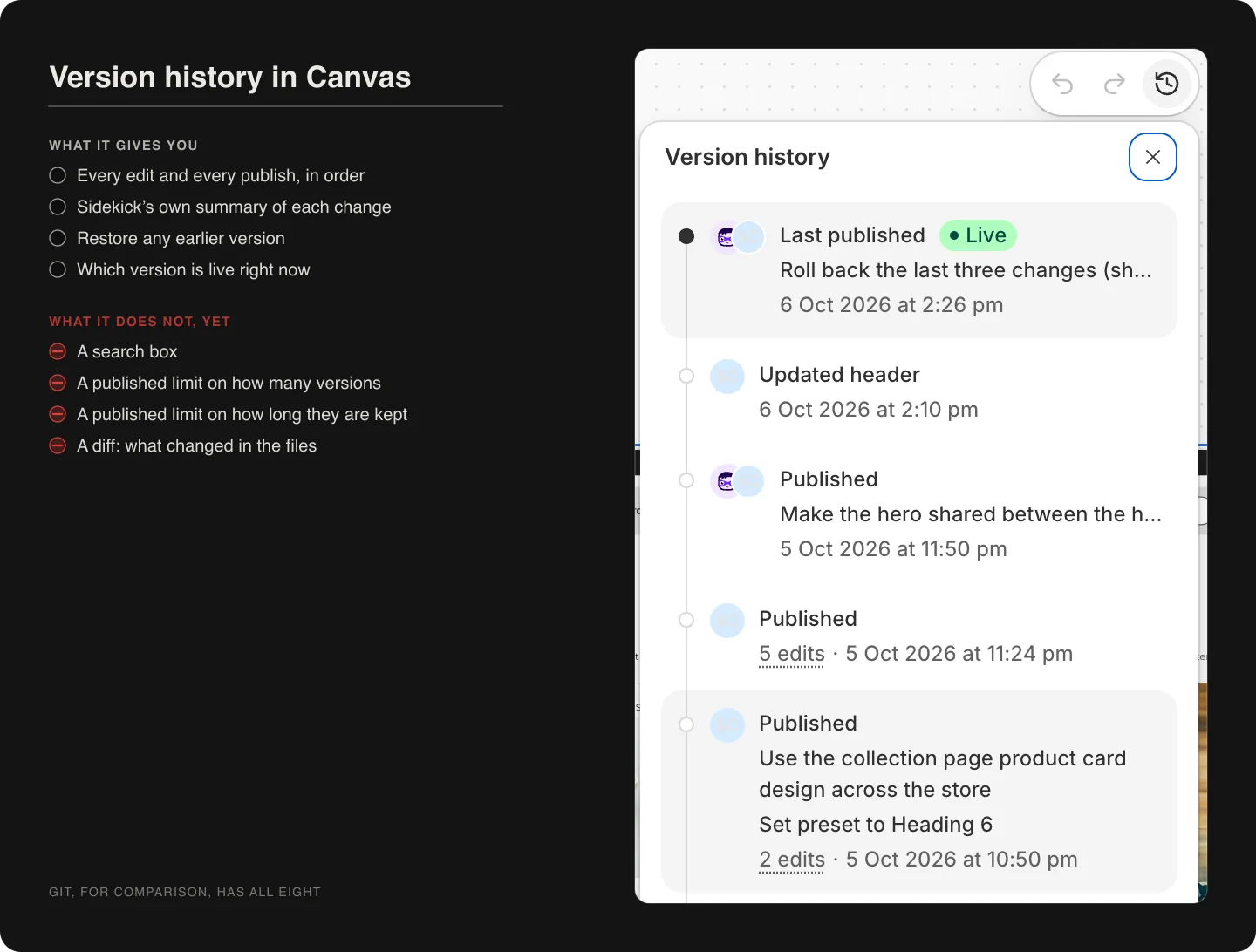
Canvas keeps a version history, and you can review and restore earlier versions, which is more than the classic editor ever gave you. What it does not have yet is a search, and Shopify has not published how many versions it keeps or for how long. Developers already know the other side of this table: Git records every change with who made it, when, and the message explaining why, forever, searchable, with rollback a single command. On a store that has traded for five years, that record is how you answer “when did the cart drawer start doing that?” A Canvas-only theme cannot answer it yet.
6. Getting the design in
A design rarely arrives as a sentence. It arrives as a Figma file, with exported images, copy, spacing and states. Canvas works from your description. You can attach an image to the Sidekick chat as a reference and it will use it, but the image files that end up in the theme you download and add yourself, and the match to the design is as good as your words. The developer workflow has the opposite problem: it starts from the Figma file, which is right, and then a person transcribes it, exports from it, uploads from it and checks against it, which is where the hours go.
Business user: if your designs are a sentence and a mood, Canvas is built for you. Developer: if they are a Figma file, neither tool reads it for you. Canvas cannot, and your workflow makes you.
Five days, in writing
Not sure which route fits your store?
Find out in five days whether your theme can open Canvas, and what moving to Horizon would take.
Why We Built an Agentic Operating System
Read those six again from an agency’s chair and you will see why we built what we built. For years our teams lived inside the right-hand column of that table. Every fix meant someone pushing a branch, waiting for the deploy, opening the log to find the preview link, holding the preview up against Figma, exporting the images again, uploading them again, running the checks again, and handing it to QA again. The code was the fast part. The handwork around it was the slow part, and it was the same handwork on the hundredth change as on the first.
That is why we built the Anatta Operating System (AOS), our agentic operating system, well before Canvas was announced. Agentic Delivery on AOS runs an engagement as a loop, intake, discovery, solutioning, sprint, build, QA and ship, and the build stage of that loop was designed to take exactly this handwork away. It keeps everything the developer workflow gets right, the files, the branch, the preview, the record, the human review, and does the parts a person was doing by hand. How we work describes the whole loop; a fixed-date theme migration run through it shows what it looks like on a real store.
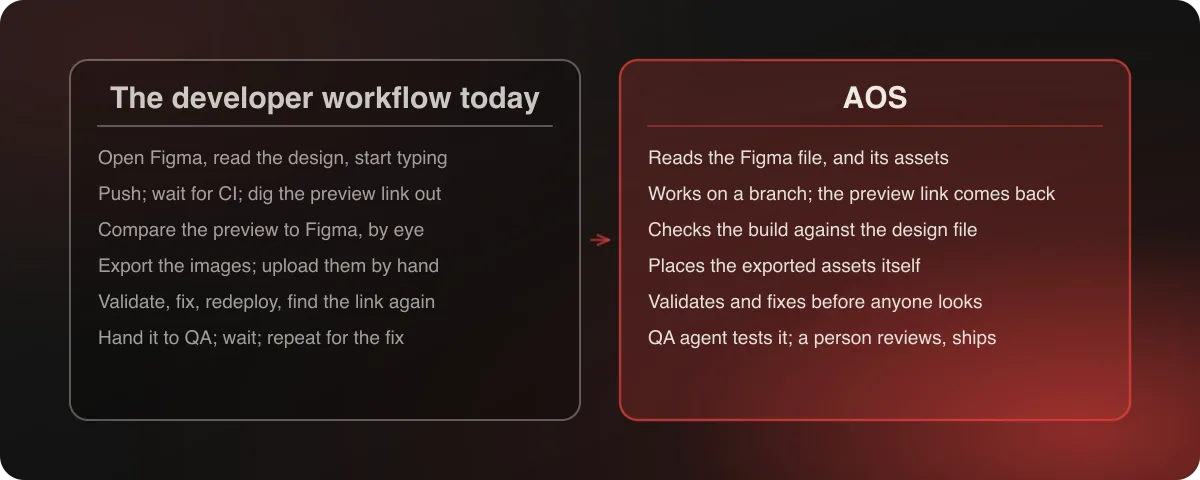
In the build stage, an engineering agent takes the brief and the Figma file itself and codes the theme against them. It works on a branch, and the preview link comes back with the change rather than waiting to be found. It places the exported assets. It validates the theme and fixes what it finds before anyone looks. The QA agent then tests the preview at desktop, tablet and phone widths against the brief, and a person reviews and publishes, every time. The next release gives the build agents sight of their own rendering, so they verify against the design before QA sees it; we say “next release” because it is coming rather than here, and this post is about what we could test.
Put the three side by side on the six things the developer workflow loses time to, and the shape is clear. Canvas removes the handwork by removing the developer, and loses the files with them. AOS removes the handwork and keeps the files.
| Theme development today | Shopify Canvas | AOS (Agentic Delivery) | |
|---|---|---|---|
| Getting the design in | A developer reads Figma and types what they see | You describe it; Sidekick builds from words | The agent reads the Figma file itself |
| Images and copy | Exported and uploaded by hand | Attach a reference image; add the files yourself | Placed by the agent from the design file |
| The preview | Pushed by CI; the link is found in a log, by hand | Live on the board as the change lands; shared by publishing | Comes back with the change, for anyone on the team |
| Matching the design | By eye, screen by screen | Sidekick inspects its own work; you paste a screenshot when it misses | Checked against the design file; QA agent tests three widths |
| Validation | Run by the developer, fixed by the developer, redeployed | At Update, in a dialog, with Fix with Sidekick | Before anyone looks; the agent fixes what it finds |
| What you keep | A theme in Git | A result inside Shopify | A theme in Git |
| Time per change | Hours to days | Seconds to minutes | Tens of minutes for a fix; longer from a design file |
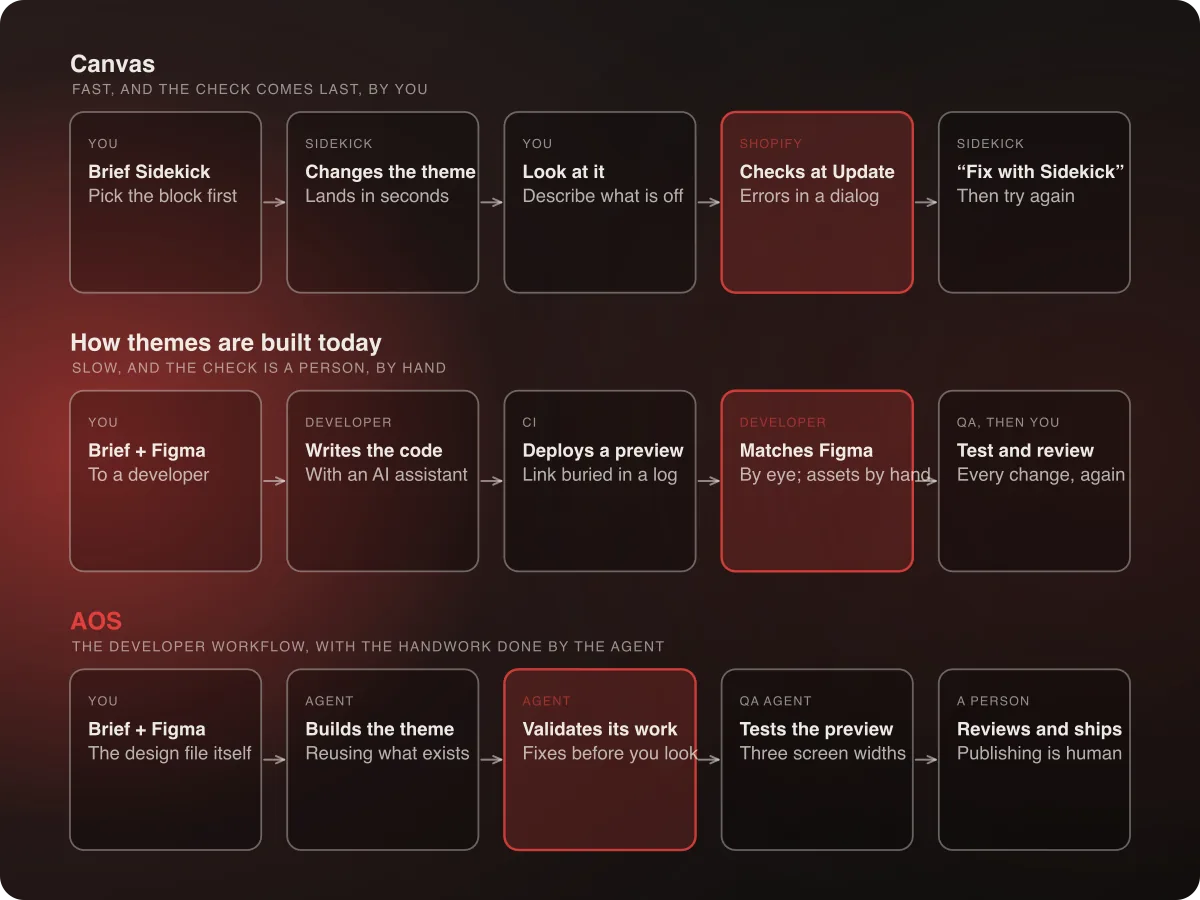
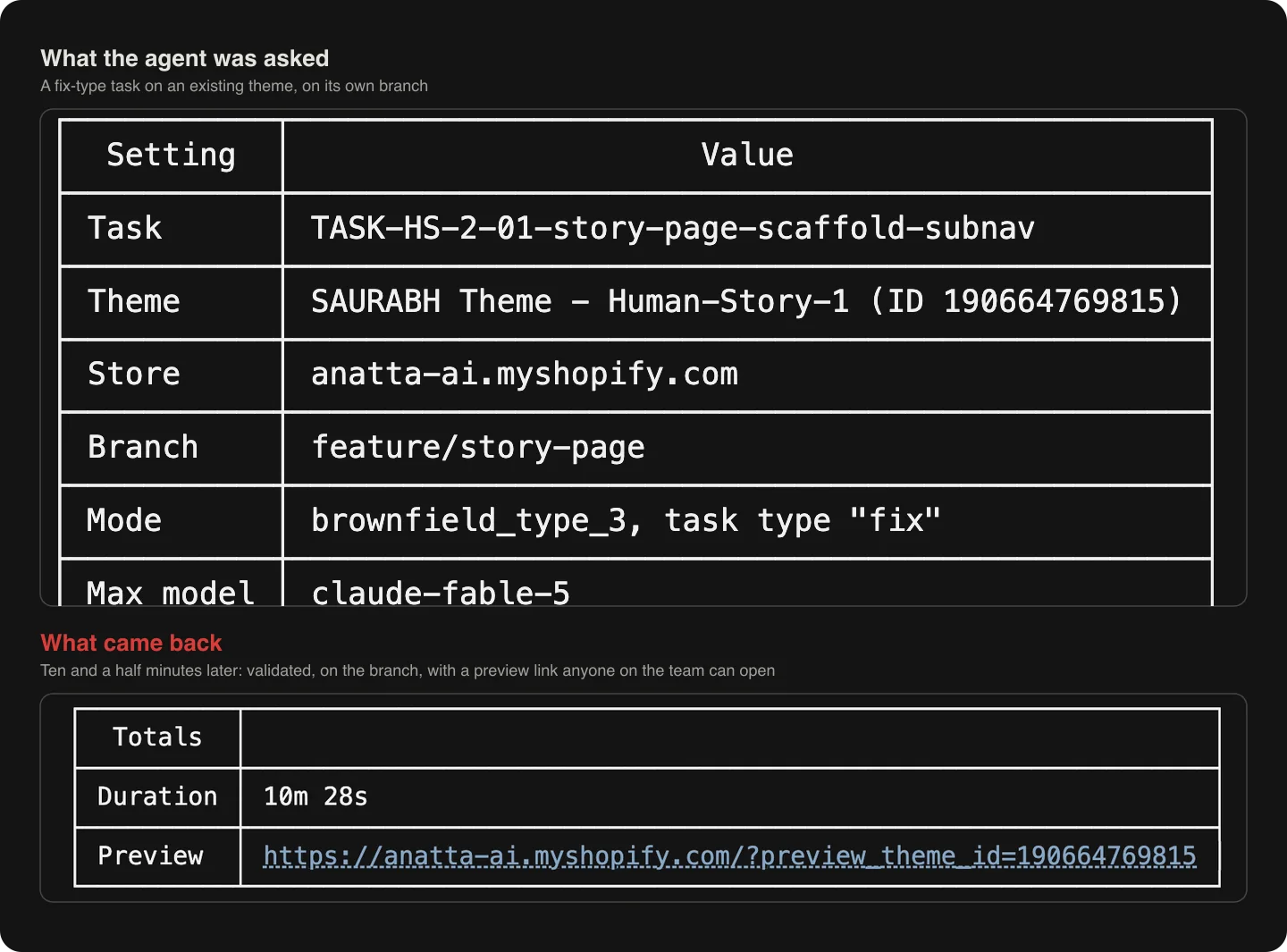
Honesty about speed, because it is the one row where Canvas still wins outright. The fix-type run pictured above took ten and a half minutes end to end; a build from a Figma file takes longer. That is a fraction of the developer workflow’s hours, and still a multiple of Canvas’s seconds. We are making the agent faster and the gap will narrow. It will not close, because most of what makes it slower is work we would not take out: reading the design file, validating before anyone looks, and a QA pass.
What Shopify Says vs. What We Saw
A few of our findings sit next to a Shopify statement that reads differently, so here they are together. Neither side is wrong: the announcement describes what Sidekick does, and our notes describe what a user sees.
| Topic | What Shopify says | What we saw |
|---|---|---|
| Code validation | Sidekick “validates its code” as it builds (announcement). If the theme can’t be published, a dialog lists the errors; Fix with Sidekick fixes them (help center) | Changes landed without complaint; errors surfaced at Update, in that dialog. The fix button works. The check is at the end, not the start |
| Visual checking | Sidekick “reviews screenshots to inspect how its changes landed on Canvas” (announcement) | Visual problems described in words were often not fixed; the same problem with a pasted screenshot usually was. Give it the picture |
| Theme files | “You can’t download the theme files for a theme that you edited in Canvas” (help center) | Confirmed. The files are not shown in Canvas either |
| Duplicating | You can “try changes on a copy of a theme” by duplicating a supported theme into Canvas (help center). Nothing published about duplicating a Canvas theme | A Canvas theme could not be duplicated again in our testing. Once it is live, you work on the live theme |
| Version history | Review and restore earlier versions (help center) | Works. No search, and no stated retention |
| Shared sections | Nothing published | Separate copies per page unless you ask for one shared section |
The Short Version
You have seen the evidence; here is what we took from it.
- Canvas is the right tool for a business user with no developer, or no budget for one, who has the time to run their own theme work. It is fast, it understands exactly which block you mean, and it reuses the theme’s own components rather than inventing new ones. For a one-page, one-section change it beats any developer workflow on earth.
- A developer’s workflow is still the right tool when the theme is something you own and have to keep owning. You get the files, a copy you can duplicate and download, a change you can read, a preview anyone on the team can open, and a history you can search. Its cost is the handwork around the code, and that cost is what an agentic operating system like AOS exists to remove, without giving up the files.
- The one-way door is the code. A theme edited in Canvas cannot be downloaded afterwards, and in our testing it cannot be duplicated either. A theme built by a developer or an agent is a regular Shopify theme, so it can go into Canvas later. The reverse trip does not exist. Decide which one is the source of truth before you start, not after.
Which One Should You Use?
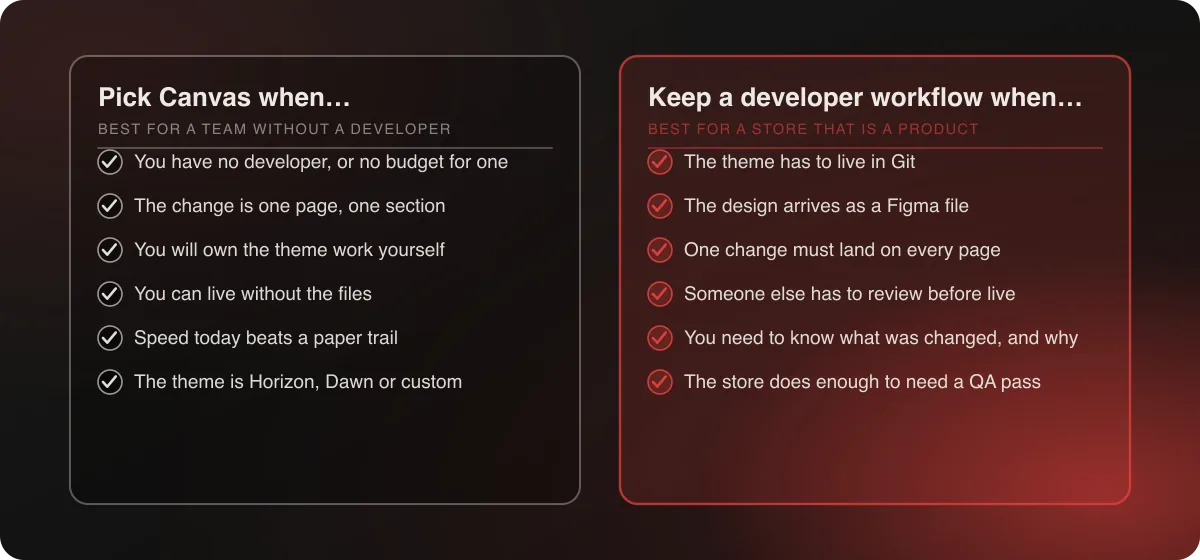
If you are a business user with no developer and the time to run your own theme, Canvas is the best thing Shopify has shipped for you in years. Use it. Pick the block before you type, ask for one shared section when a design is meant to be one component, paste a screenshot when something looks off, and treat the errors dialog at Update as part of the routine rather than a surprise. Know that the files stay inside, and that once your Canvas theme is live you will be editing the live theme.
If you are a developer, or a brand with one, the theme is an asset with a history, and Canvas as it stands today cannot hold that history or hand it back. Keep the live theme in a pipeline where every change is a reviewed, validated, recorded commit. Whether a person or an agent does the handwork inside that pipeline is a separate decision, and the one AOS exists to answer. That is not a vote against Canvas. It is where Canvas is in October 2026, and Shopify has said plainly that gaps remain and will close.
Using Both Without Getting Burned
Most enterprise brands will end up with both, and the order of operations matters because one of the doors only opens one way.
- Decide the source of truth first. Either the repository is the theme and Canvas is a sandbox, or Canvas is the theme and the repository is retired. A theme that is sometimes one and sometimes the other will diverge within a month.
- A theme from a repository can go into Canvas; a Canvas theme cannot come out. A developer’s or an agent’s theme is a custom theme, which is one of the two kinds Canvas supports. So the safe sequence is build and launch through the pipeline, then duplicate into Canvas for the business team’s small changes. The reverse trip, Canvas to repository, does not exist today.
- Let Canvas own the small, local change, on a duplicate. Headline treatments, image swaps, a warmer product page: exactly what it is quick at, on a copy, with the money paths tested before Update.
- Let the pipeline own anything that is a system. A component used on many pages, a change from a Figma file, anything touching apps, markets, subscriptions or checkout, and anything that needs sign-off before it is live.
- Watch the convergence. Shopify has said it is working toward Canvas becoming the default editor. When Canvas themes can be exported, the two worlds meet and this list gets shorter. Until then, keep the files.
Frequently Asked Questions
Is Shopify Canvas better than hiring a developer?
For a small, local change on a supported theme, when nobody on your team writes code, often yes: it is faster and it is included in your plan. For anything that has to be consistent across the store, reviewed before it goes live, built from a design file, or kept under version control, a developer’s workflow, with a person or an agent doing the work inside it, still does things Canvas cannot.
Can I download or export a theme I edited in Canvas?
No. Shopify’s help center states that you cannot download the theme files for a theme that has been edited in Canvas, and the files are not shown inside Canvas either. A theme built by a developer or an agent is an ordinary theme and can be downloaded, duplicated and moved.
Can I duplicate a Canvas theme?
You can duplicate a classic Shopify-developed or custom theme into Canvas once. In our testing, a theme that is already a Canvas theme could not be duplicated again, which means once it is published you continue editing the live theme. Shopify has not published documentation either way, so treat this as an early-access observation.
Does Canvas check its code for errors?
Shopify says Sidekick validates as it works. In our testing, errors surfaced when we pressed Update: a dialog lists them and a Fix with Sidekick button sends them back, which usually resolves them in one pass. In a developer’s workflow the developer runs the checks before deploying; on AOS the build agent runs them before the change is offered for review.
What is the Anatta Operating System (AOS)?
The Anatta Operating System (AOS) is Anatta’s agentic operating system: agents run each stage of an engagement, intake, discovery, solutioning, sprint, build, QA and ship, and people own the judgement and press publish. In the build stage an engineering agent takes the brief and the Figma file, codes the theme on a branch, places the assets, validates and fixes its own work, and hands back a preview link and a reviewable change; the QA agent tests the preview and a person publishes. It was built to remove the handwork around a developer’s theme workflow while keeping the files in Git. The Agentic Delivery glossary defines the terms.
Why is an agent slower than Canvas?
Canvas works on one selected block, shows you the result immediately and does the checking at publish time. AOS’s build agent opens the design file, places the assets, validates the theme, runs a QA pass on a preview and hands a reviewable change to a person. Each of those steps is time, and most of them are the reason you would choose it. We are making it faster; we are not taking the steps out.
Can I use Canvas on a theme a developer or agency built?
Yes, if it is a custom theme or a Shopify-developed theme, which a theme from a repository is. Duplicate it into Canvas and the copy opens there. Remember that the copy then stops receiving theme updates and cannot be downloaded, so keep the original in the repository as the source of truth.
Not sure which route fits your store, or whether your theme can even open Canvas? The 5-Day Horizon Readiness Audit answers both in writing. Or talk to an architect first.
Five days, in writing
Canvas yourself, or agents? Start with the theme.
Canvas only opens Shopify-developed and custom themes. The 5-Day Horizon Readiness Audit tells you where your store stands: what a move to Horizon involves, what breaks, what it costs, and whether to do it at all. $2,500, credited in full against a Horizon Sprint booked within 30 days.
Related Reading
-
 Shopify Platform Changes
Shopify Canvas, Explained: What You Can Change Yourself Now
Shopify's new Canvas lays every page of your store on one board and lets you change it by clicking, or by telling Sidekick what you want. Here is what a business owner can do with it today, what Shopify says is still missing, how to try it without breaking anything, and why a move to Horizon is the fastest way in.
Saurabh Chaudhary Delivery Lead -
 Agentic AI
Agentic Delivery on a Fixed-Date Shopify Theme Migration
Dropps’ Horizon rebuild had four weeks and a fixed launch date. What the delivery loop did with the scope, the changes and the risk — and what it didn’t.
Prasenjit Paul Chief AI Officer - Explore the service
Services & Solutions
Agentic commerce, explained
How AI agents discover, compare and buy for shoppers, where it is live on Shopify, and what a brand should fix first.